

We’ve all been there—you sit down to do something important, and before you know it, you’re scrolling endlessly on Instagram, checking notifications, or watching just one more YouTube video. Suddenly, an hour is gone. Sound familiar?
In today’s hyper-connected world, distractions are everywhere, and they usually live right in our pockets—on our smartphones. Fortunately, there’s a powerful yet simple solution: AppBlock.
In this guide, we’ll explore what AppBlock is, how it works, and how you can use it to take back control of your time and attention. We’ll break everything down in plain, everyday language with step-by-step instructions.
What is AppBlock?
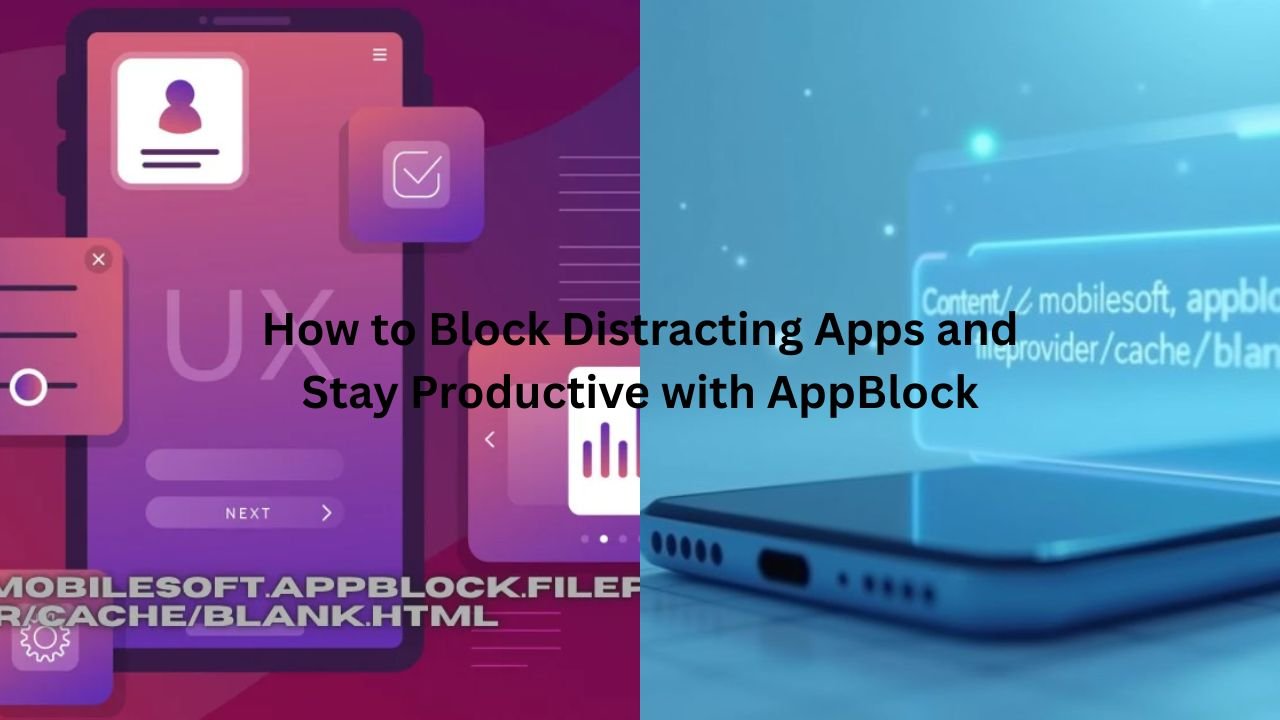
AppBlock is a mobile application (available for both Android and iOS) that allows you to block access to apps and websites that tend to distract you. It’s designed to help you focus on what really matters—whether that’s studying, working, spending quality time with your family, or simply relaxing without screen time.
But it’s more than just a simple app blocker. AppBlock lets you set custom rules, schedules, and even use location-based triggers to keep distractions away during specific times or activities.
Why Do People Use AppBlock?
Let’s start with a story.
A college student named Amy was struggling to focus during her online classes. She had the best intentions, but every time she opened her laptop or phone, a notification would pop up—and she just couldn’t resist. After trying different productivity techniques (like the Pomodoro Method and to-do lists), she realized the root of her problem: digital distractions.
That’s when she discovered AppBlock.
Within a week of setting up app blocking rules during class hours, Amy noticed a massive difference. Her focus improved, and she even finished her assignments ahead of schedule.
Like Amy, millions of people use AppBlock to:
- Study without distractions
- Stay focused at work
- Limit screen time
- Improve mental health
- Sleep better by avoiding late-night scrolling
- Spend more time with family or offline hobbies
Features of AppBlock: What Makes It Special?
Let’s break down the key features that make AppBlock one of the most powerful productivity apps available.
1. App Blocking
You can block access to specific apps that you find distracting (like TikTok, Instagram, YouTube, or even email).
2. Website Blocking
Say goodbye to wasting time on Reddit, news sites, or online stores. You can block websites directly from the app.
3. Scheduled Blocking
Set a daily or weekly schedule so that apps/websites are only blocked during certain times (like 9 AM to 5 PM on weekdays).
4. Location-Based Blocking
Imagine walking into the library and having your social media apps automatically blocked. Yes, it’s possible.
5. Strict Mode
This feature makes it harder to disable blocking once it’s active. It’s perfect for people who are serious about staying focused.
6. Usage Tracking
AppBlock also provides insights into how much time you spend on each app, helping you understand your digital habits better.
How Does AppBlock Improve Focus and Productivity?
Let’s face it—willpower alone isn’t enough when it comes to fighting distractions. Our brains are wired to seek out instant gratification, and smartphones are full of it.
What AppBlock does is remove the temptation. It builds a digital wall between you and the apps that steal your time. You don’t need to rely on discipline all the time—because the option to get distracted simply isn’t there.
This approach works especially well for people with:
- ADHD
- Anxiety or stress from information overload
- Procrastination habits
- Work-from-home challenges
Getting Started with AppBlock: A Step-by-Step Guide
Ready to take control of your time? Follow these steps to set up AppBlock and start reclaiming your focus.
Step 1: Download the App
Go to the Google Play Store or Apple App Store and search for AppBlock. Download and install it.
- Android: AppBlock on Google Play
- iOS: AppBlock on App Store
Step 2: Set Up Your First Profile
When you open the app, you’ll be asked to create a profile. A profile is a set of rules that define what gets blocked and when.
- Tap “Create new profile”
- Give it a name (e.g., “Work Mode” or “Study Time”)
Step 3: Choose Apps to Block
You’ll see a list of installed apps. Select the ones you want to block during this profile.
Pro tip: Start with the worst offenders—social media, games, and entertainment apps.
Step 4: Add Websites (Optional)
If you often get distracted by websites, tap on Blocked websites and add URLs like:
- youtube.com
- reddit.com
- instagram.com (desktop version)
Step 5: Set a Schedule
Choose when the profile should be active.
- Days of the week (e.g., Mon–Fri)
- Start and end time (e.g., 9:00 AM to 5:00 PM)
Step 6: Enable Strict Mode (Optional but Recommended)
If you’re tempted to disable blocking mid-session, turn on Strict Mode. It prevents you from making changes during an active session.
Step 7: Save and Activate
Tap “Save” and then “Activate.” Boom—you’re now shielded from distractions.
Real-Life Use Cases: How People Use AppBlock
Students
Emma uses AppBlock while studying for her exams. She sets it to block TikTok, Snapchat, and mobile games between 8 PM and 11 PM daily. She claims she now finishes her assignments faster and sleeps earlier.
Remote Workers
James, a freelance writer, uses AppBlock to block all social media during work hours. He also uses the website blocker to restrict browsing on news sites and YouTube.
Parents
Anna and Mike use AppBlock to set app limits on their teenager’s phone during school hours and bedtime. It helps reduce screen time without constant reminders.
Wellness Seekers
Tom uses AppBlock to help with his digital detox. On weekends, he activates a profile that blocks everything except essential apps like calls and maps.
Tips and Tricks to Make the Most of AppBlock
Start Simple
Don’t try to block everything at once. Begin with your top 3 distractions.
Experiment
Use different profiles for different scenarios—like “Work”, “Study”, “Sleep”, or “Family Time.”
Use Location Triggers
Block distractions when you enter specific places like libraries, offices, or classrooms.
Combine with Focus Modes
Use AppBlock alongside your phone’s built-in focus features for an even stronger effect.
Track Your Progress
Check usage stats weekly to see how your digital habits are improving.
Free vs. Premium: Is It Worth Upgrading?
The free version of AppBlock is quite powerful, but the premium version offers more flexibility:
| App blocking | ✅ | ✅ |
| Website blocking | ❌ | ✅ |
| Location triggers | ❌ | ✅ |
| Multiple profiles | Limited | Unlimited |
| Strict mode options | Basic | Advanced |
| Statistics | Limited | Full reports |
If you’re serious about improving productivity and reducing screen time, the upgrade is definitely worth considering.
Final Thoughts: Your Time Is Worth Protecting
In a world that’s always pulling our attention in a million directions, learning how to focus is a superpower. Tools like AppBlock don’t just help you block distracting apps—they help you build better habits, reclaim your time, and get closer to your goals.
Whether you’re a student trying to pass exams, a professional working from home, or someone who just wants to spend less time on their phone, AppBlock can be your secret weapon.
So why wait?